How to use NOTVM
On Windows, NOTVM works just like on Mac. The differences: events are created in Outlook (or opened in your calendar app), reminders are delivered by NOTVM as a notification, and shortcuts use Alt instead of ⌥.
NOTVM is an AI layer that lives on top of your computer. No apps to open, no copying and pasting: you speak, and NOTVM writes, answers or acts right where you’re working.
Almost everything happens with a single shortcut: ⌥ Space. This manual walks through every feature with examples.
Nothing in the manual matches your search.
Getting started
You’ll have NOTVM up and running in five minutes.
1. Install
- Download NOTVM from the website and open the NOTVM.dmg file.
- Drag NOTVM to your Applications folder and open it.
- NOTVM doesn’t appear in the Dock: it lives as a floating icon at the top right of your screen.
2. Create your account
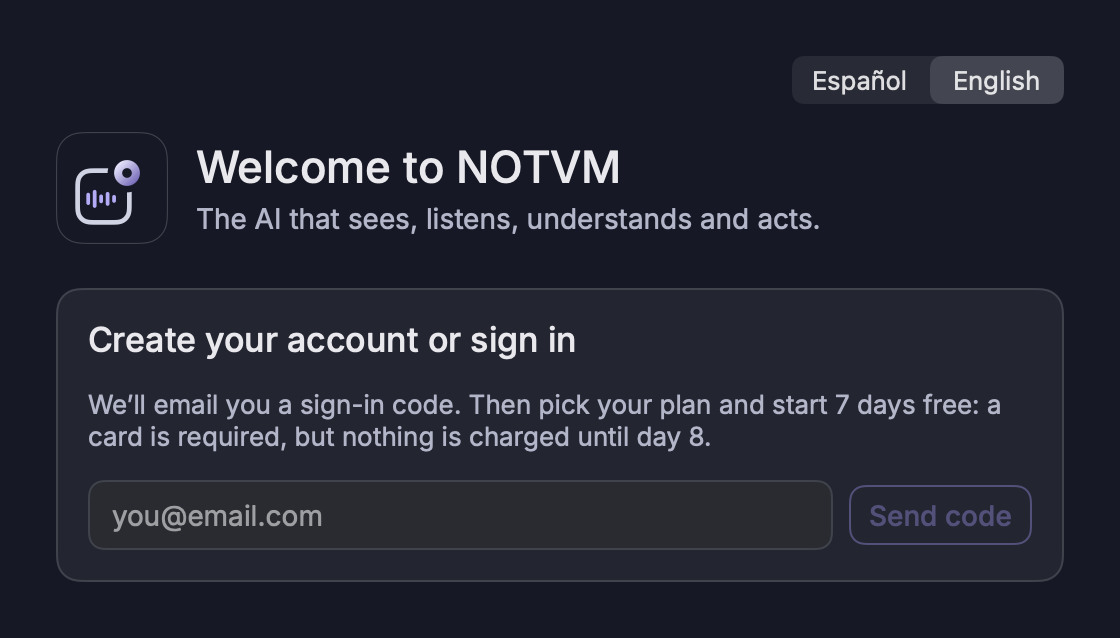
Enter your email and click Send code. You’ll receive a 6-digit code; type it into the app and you’re in. No passwords.
Then choose your plan: every plan includes 7 days free. A card is required, but nothing is charged until day 8, and you can cancel before then from the app without paying anything.
Language: choose the app language on the first screen (Español | English), or later in Settings › General & Privacy › App language. Changing it also switches the dictation language.
3. Grant permissions
The welcome window guides you through it. macOS will ask you to confirm each permission:
| Permission | What it’s for |
|---|---|
| Microphone | Hearing what you dictate. It’s only active while you hold the shortcut or during the meeting copilot. |
| Speech Recognition | Transcribing your voice on the Mac itself (your language model downloads once). |
| Accessibility | Detecting the shortcut and typing into the field where your cursor is. Turn it on in System Settings › Privacy & Security › Accessibility. |
| Screen Recording Optional | Asking about what you see, and letting the copilot hear other people in a meeting. After turning it on, right-click the icon › Restart NOTVM. |
Later on, macOS will also ask for access to Documents, Desktop, Downloads, Calendars, Reminders or Contacts, but only when you use a feature that needs it.
4. Try it
Open a new email, put the cursor in the body, hold ⌥ Space and say: “Tell Carlos that sounds great and we can talk tomorrow morning”. Let go. NOTVM writes the email for you.
Shortcuts and the icon

| Shortcut | What it does |
|---|---|
| ⌥ Space held | Speak while you hold it; when you let go, NOTVM writes, answers or acts. |
| ⌥ Space pressed and released | Hands-free mode: speak without holding anything. NOTVM finishes on its own when you stop talking for a few seconds (or press the shortcut again). |
| Right ⌥ held | Same as holding ⌥ Space. You can change the key in Settings. |
| ⌥ ⇧ Space | Always ask about the screen (in case NOTVM typed something you meant as a question). |
| Esc | Cancels dictation or closes a card. |
| ⌘ K | Search your history (with the panel open). |
| ⌘ ↩ | Insert the answer or Allow an action. |
The floating icon
- Click: opens the panel with your history.
- Drag: move it wherever you like; it remembers.
- Right-click: meeting copilot, Your account, Settings, Check for updates, Pause, Restart and Quit.
- Animation: the icon shows what NOTVM is doing: voice bars while dictating, an eye while reading, a magnifying glass while searching and an ear while listening to a meeting.
Pausing NOTVM (right-click the icon) turns off the microphone and shortcuts until you resume.
Dictation
Talk the way you talk. NOTVM removes filler words, organizes your ideas and writes it in the right tone in the field where your cursor is.

How it works
- Put the cursor in any text field: Gmail, Outlook, WhatsApp, Slack, Word, Notion, your browser…
- Hold ⌥ Space and speak. You’ll see what you’re saying next to the icon.
- Let go. A few seconds later, the text appears.
It adapts to each app
| Where | How it writes |
|---|---|
| Gmail, Outlook, Mail | Professional email: greeting, body and sign-off. |
| WhatsApp, Messages, Telegram | Casual and short, no signature. |
| Slack, Teams | Friendly and direct. |
| Engaging. | |
| Word, Pages, Notion, Google Docs | Structured, with lists when needed. |
| Xcode, VS Code, Terminal | Technical and concise. |
What it understands
- Instructions: “Tell Laura we’ll see her on Thursday” writes the message to Laura, not the instruction.
- Self-corrections: “Let’s meet on Tuesday, no, sorry, Wednesday” writes only “Wednesday”.
- Spoken formatting: “new paragraph”, “new line”, “comma”, “colon”…
- Questions for someone else: “Are you coming to the meeting tomorrow?” in WhatsApp is typed as is; NOTVM doesn’t answer it.
In Settings you can add your name to sign emails and describe your style (“first names with clients, short sentences”). NOTVM also learns from the texts it has already written with you.
If no text field is active, NOTVM puts the text on the clipboard so you can paste it with ⌘ V. Everything you dictate is saved in your history.
Working with selected text
Select any text and tell NOTVM what to do with it, no copying or pasting.
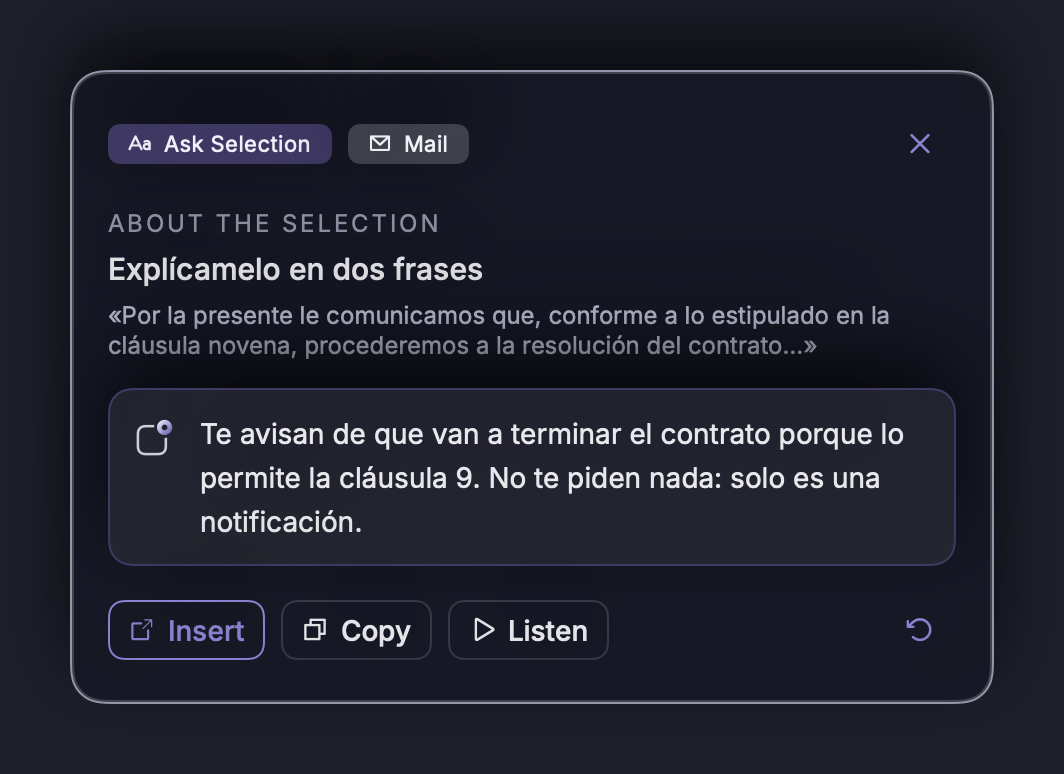
Transform (replaced right away)
If the text is in an editable field, NOTVM replaces it instantly:
- “Translate it into Spanish”
- “Make it more formal” · “Make it shorter” · “Make it more persuasive”
- “Fix the typos” · “Turn it into a list”
Ask (answered in a card)
- “Explain it to me” · “Summarize it” · “What does this mean?”
- “Reply to this saying yes, but next week”
If the text isn’t editable (a web page or a PDF), the answer always appears in the card, with Copy and Insert buttons.
Ask about what you see
NOTVM looks at the active window and answers you. It needs the Screen Recording permission.
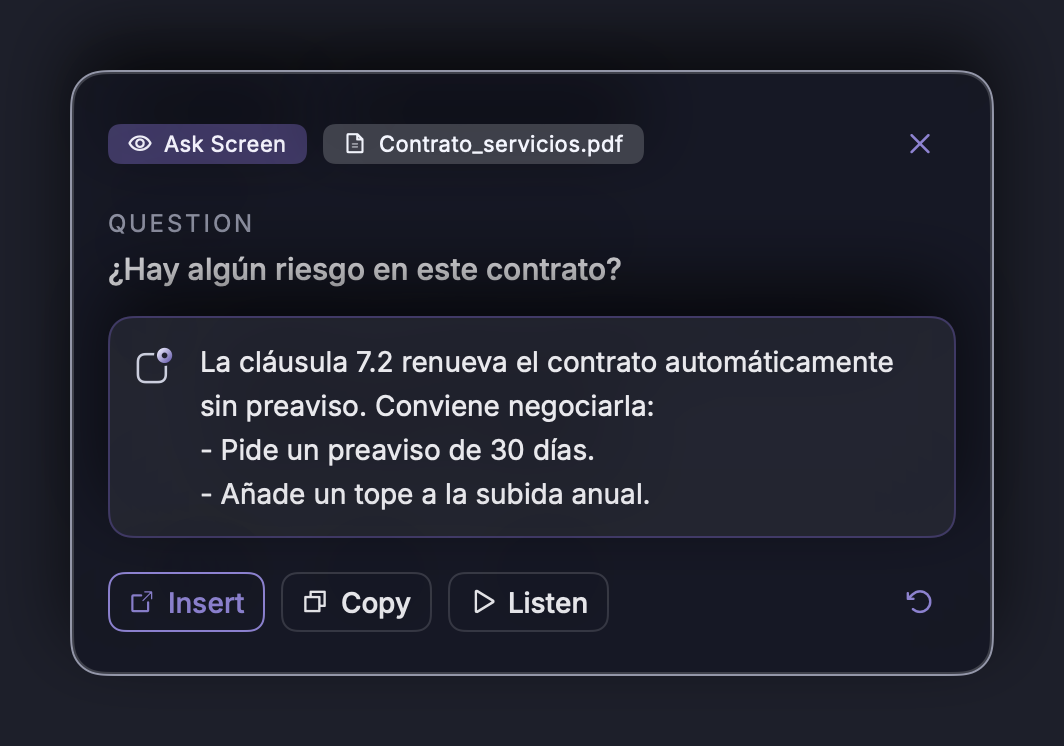
With the same shortcut, ask anything:
- “What are they asking me for in this email?”
- “Is there any risk in this clause?”
- “What does this chart mean?”
- “How would you reply to this?”
NOTVM figures out on its own whether you’re asking it something or dictating text. If it ever gets it wrong, use ⌥ ⇧ Space, which always asks.
Full documents Pro
If you have a PDF, Word or text document open, NOTVM reads the whole document, not just the visible part. Ideal for long contracts, reports and proposals: “What obligations are we taking on?”, “Pull out the key dates”, “Is there a penalty if we cancel?”.
Reply with context
With an email or chat open, put the cursor in the reply box and say:
“Reply that we can do it, but we need three weeks and want to review their API first”
NOTVM reads the conversation on screen to understand who and what you’re replying to, and writes a complete, natural reply.
The answer card
Questions, memory searches and summaries appear in a card below the icon. The answer is written live.
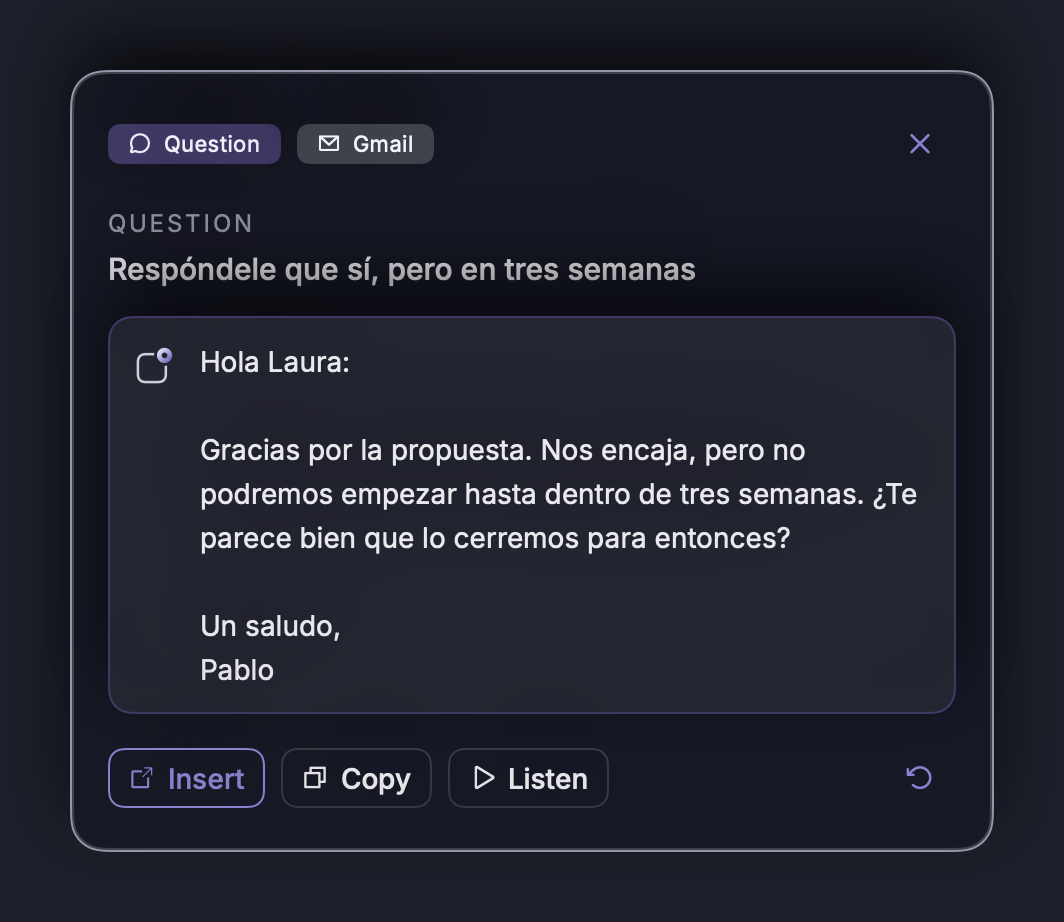
| Button | What it does |
|---|---|
| Insert / Replace | Types the answer into the app you were in (or replaces the selection). |
| Copy | Copies the answer to the clipboard. |
| Listen | Reads it aloud using a built-in Mac voice. |
| ↻ Regenerate | Asks for a different answer. |
| Sources | In searches, the documents the answer comes from. Click to open them. |
Close the card with Esc, the ✕, or by clicking outside it.
The panel and history
Click the icon to open the panel.
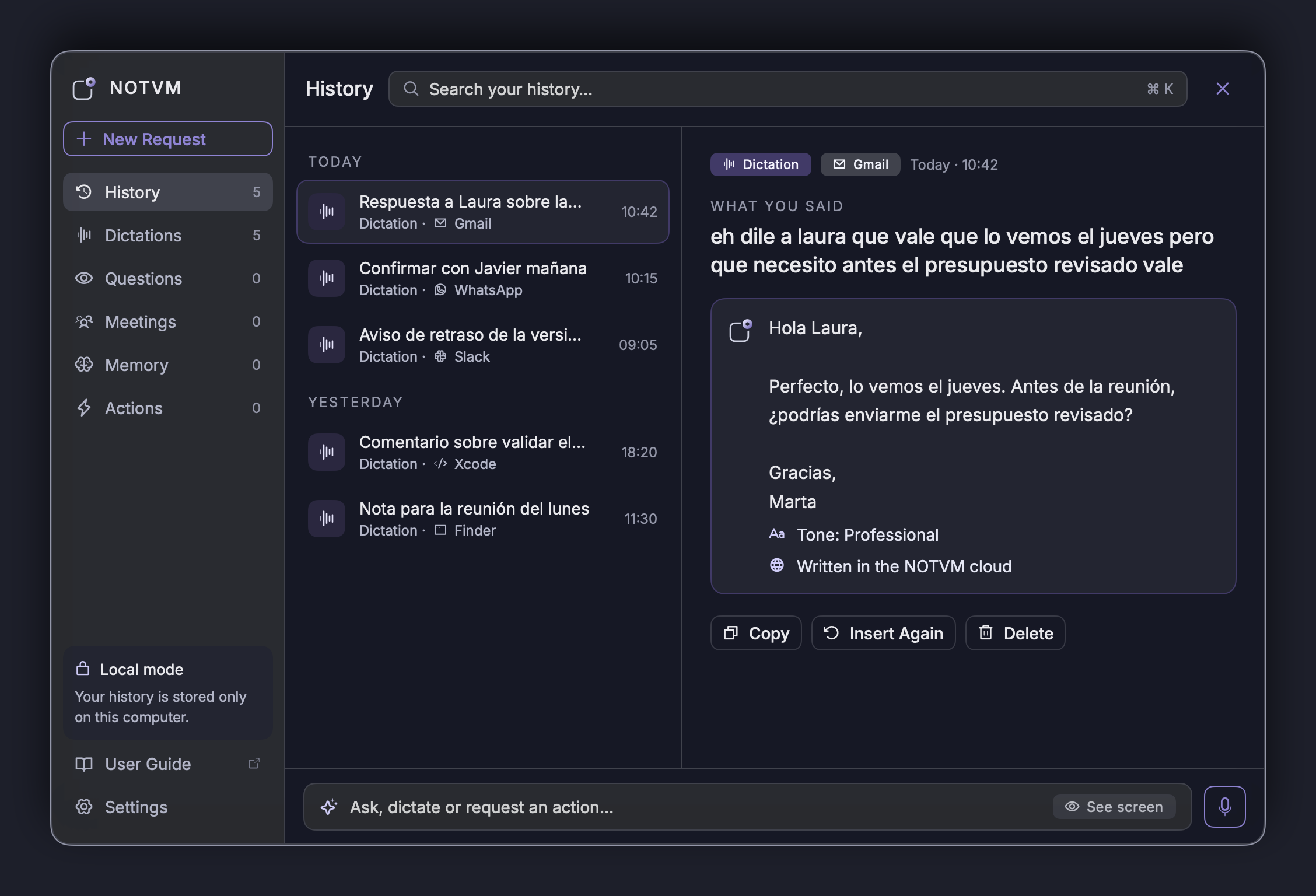
- Sidebar: History (everything), Dictations, Questions, Meetings, Memory and Actions, with the number of items in each.
- Search (⌘ K): searches your entire history.
- Details: what you said and what NOTVM answered or wrote, with Copy, Insert, Listen and Delete buttons.
- Bottom field: type or dictate (🎙 button) a question and press ↩. Turn on See screen to include the window you were in.
- User manual: this manual, from the sidebar.
Your history is stored only on your Mac. You can delete it in Settings.
Memory Pro
You don’t remember where it is; you remember what it said. NOTVM searches by meaning across your documents and your history.
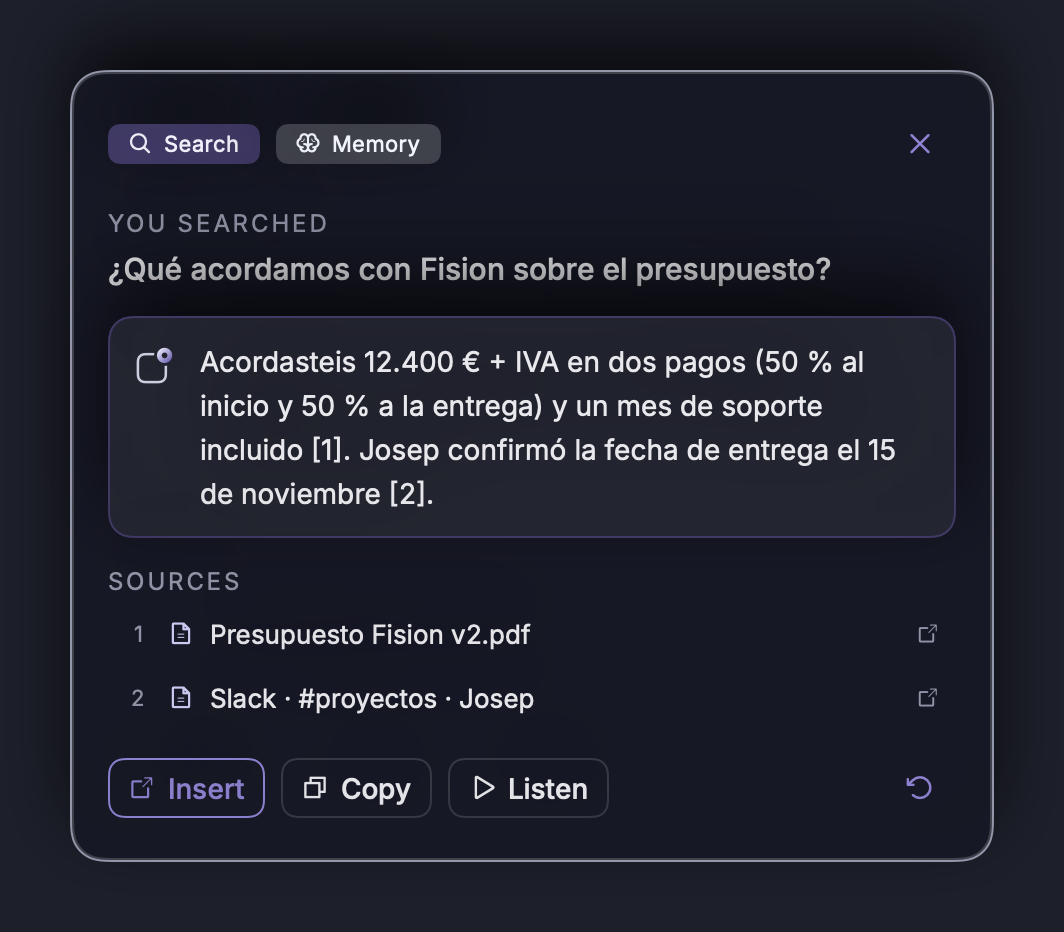
Search your documents
- “Find the contract where we talked about AI costs”
- “The quote Josep sent me in March”
- “What did we agree with Laura about the proposal?”
NOTVM answers citing the source, for example [1], and lets you open the file. It works with PDF, Word, RTF, text, Markdown and CSV files in your Documents and Desktop folders (add or remove folders in Settings › Memory).
“Where did we leave off?”
Ask “Where did we leave off?”, “What was I working on yesterday?” or “What’s still pending?” and NOTVM catches you up: what you worked on and what was left unfinished.
Prepare for a meeting
“Prepare me for the meeting with Laura” gathers everything related it finds in your memory.
The index of your documents is built and stored only on your Mac. NOTVM never reads files with names like “passwords”, “key” or “.env”, or snippets that look like keys or passwords.
Meeting copilot Pro
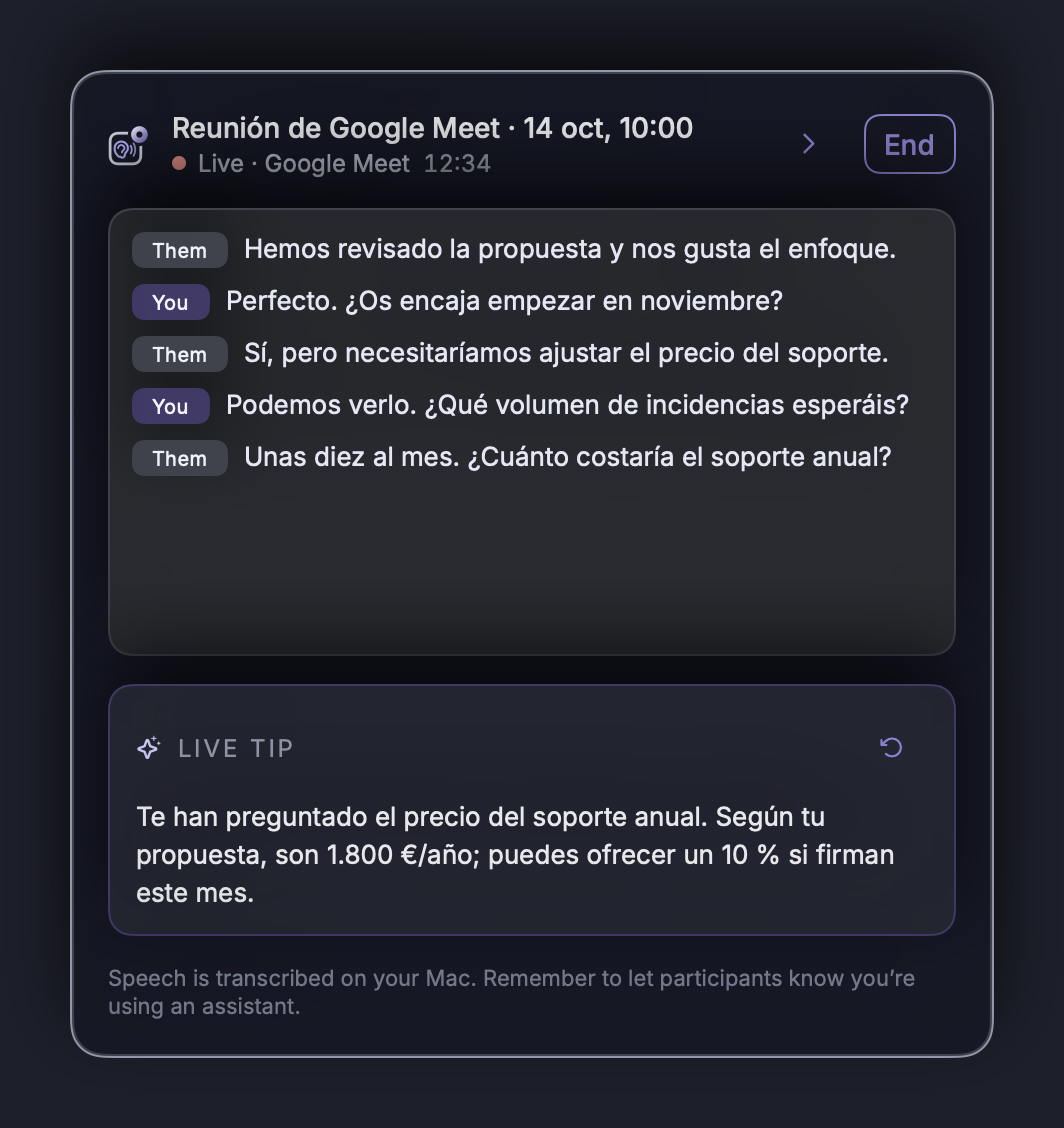
It listens to your Google Meet, Zoom, Teams or Webex meetings, coaches you live, and has the summary ready when you finish.
Turn it on
- Automatic: when you’re on a call, NOTVM asks “Meeting detected… Start the copilot?”.
- Manual: right-click the icon › Start meeting copilot, or say “Start the copilot”.
During the meeting
- You’ll see the live transcript: You (your microphone) and Them (everyone else).
- Live tips: how to answer what you were just asked, what to ask, and which topics are still open. Click ↻ to get one right away.
- You can hide the window; NOTVM keeps listening. Click the icon to bring it back.
When it ends
Click Finish or say “Stop the copilot”. You get the summary, decisions, tasks (with owner and due date), open topics and a follow-up email ready to send. The full transcript is saved on your Mac.
Let participants know you’re using an assistant. In some countries it’s required by law. Your voice is transcribed on your Mac; only the text goes to the cloud.
Actions Pro
NOTVM doesn’t just answer: it also gets things done on your Mac, always after you confirm.
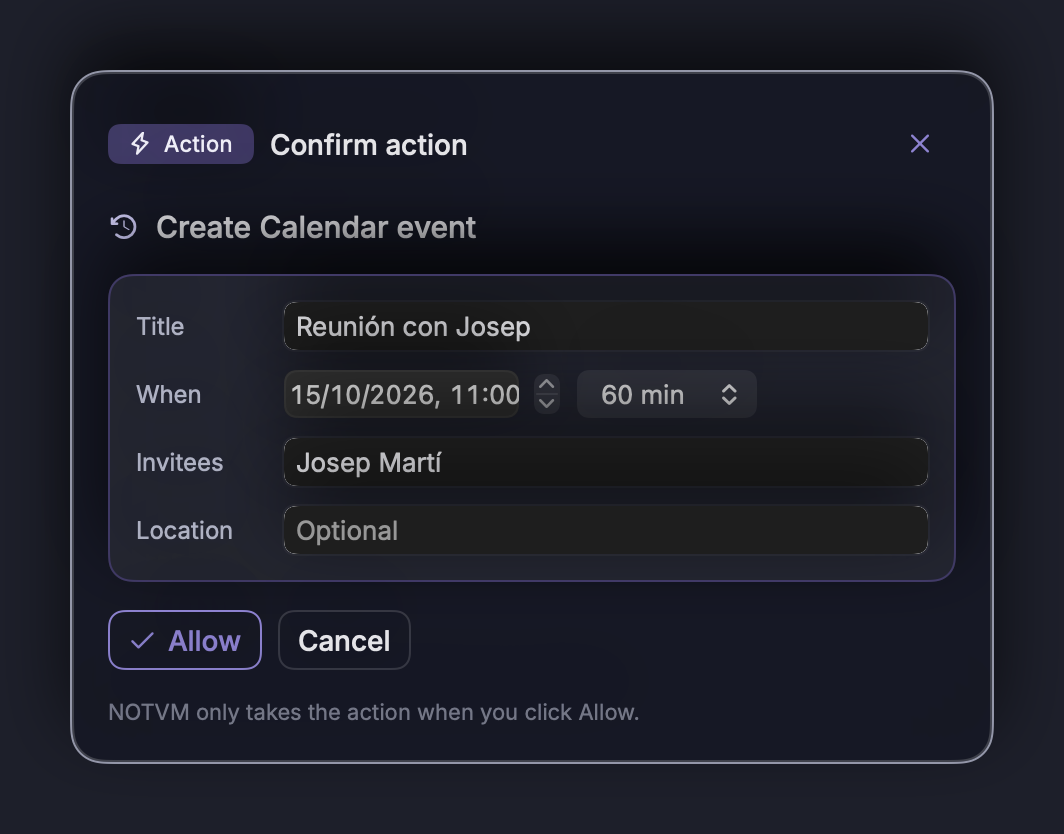
| Say | What it does |
|---|---|
| “Schedule a meeting with Josep tomorrow at 11” | Creates an event in your Calendar. You can then send the invitation by email. |
| “Remind me to call Carlos on Monday” | Creates a reminder with an alert. |
| “Send this document to Josep” | Creates a draft in Mail with the document attached; the email address is looked up in your Contacts. |
| “Draft an email to Laura saying yes” | Writes a draft for you to review and send. |
| “Save this PDF in the Fision project folder” | Moves it in Finder. |
| “Rename it to October invoice” | Renames the open or selected document. |
| “Open the projects folder” | Finds it and opens it. |
Before anything happens, Confirm action appears with every detail editable: date, title, recipients, text or folder. It only runs when you click Allow. Afterwards you can Undo. Emails are never sent automatically: they open as drafts.
“This document” means the document open in the active window, or the files you have selected in Finder.
Automations Pro
Show it once. NOTVM learns the tasks you repeat and does them for you.
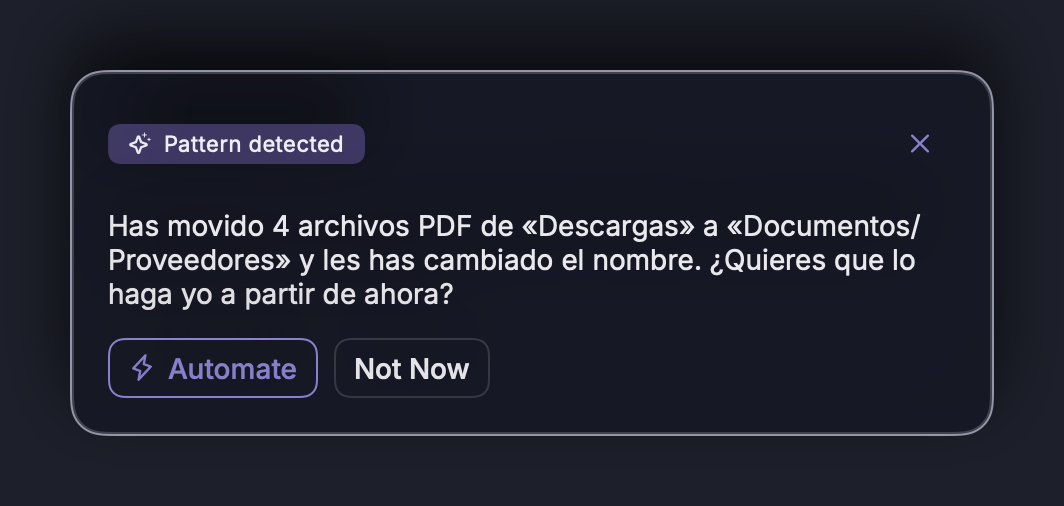
Automatic detection
If you move and rename files the same way several times (for example, invoices from Downloads to “Suppliers”), NOTVM shows Pattern detected and offers to automate it.
Teach it on purpose
- Say “Learn how I file invoices”.
- Do it yourself once, as usual: rename and move the file.
- Say “Done”.
What it does next
When a new file of the same type arrives, NOTVM reads its contents, names it according to your rule (for example, 2026-10-11_Supplier_F-0412.pdf), files it and logs its details in a spreadsheet that opens in Excel (supplier, date, number, amount…). It only acts on documents of the type it learned.
| Mode | Behavior |
|---|---|
| Ask | Shows you what it’s about to do and waits for you to click Allow (default). |
| Automatic | Does it on its own and lets you know, with Undo. |
| Off | Does nothing. |
Manage your automations in Settings › Automations.
Slack Pro
Connect your Slack and NOTVM searches your messages and writes for you, without opening Slack.
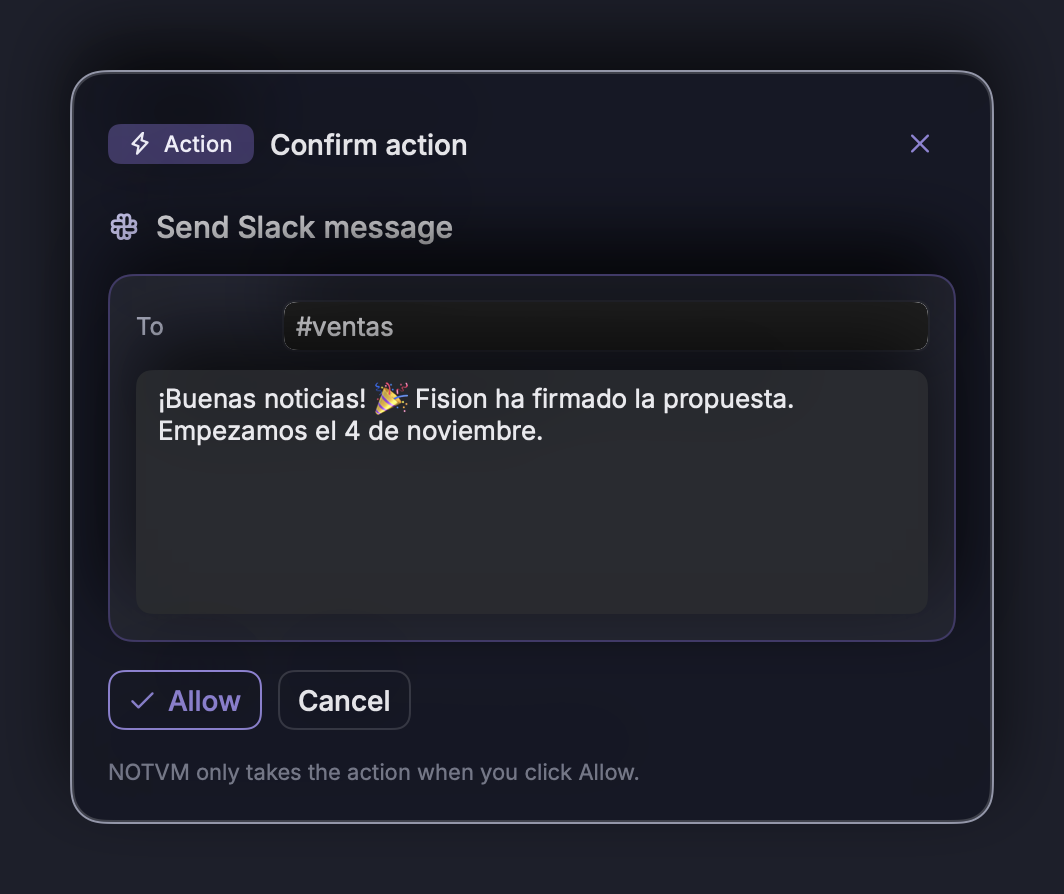
Connect
In Settings › Connections, click Connect Slack. Slack opens in your browser: choose your workspace and click Allow. When you return, NOTVM shows “Connected to…”. To connect more than one, use Add another workspace. You can disconnect at any time from the same place.
| Say | What it does |
|---|---|
| “What did Marta say in Slack about the budget?” | Searches your messages and answers with what it finds, with links to each message. |
| “Search Slack for the Fision contract” | Pulls together what’s been said in channels and direct messages. |
| “Post in #sales that the client has signed” | Prepares the message for that channel. |
| “Message Luis on Slack that I’ll be there in 10 minutes” | Prepares a direct message to that person. |
Before anything is sent, Confirm action appears with the destination and the text, which you can change. It’s only sent when you click Allow, and it’s sent as you, just as if you’d typed it.
Memory searches (⌥ Space “What did we agree with…?”) also look in Slack if it’s connected.
Privacy: NOTVM only reads the messages that match what you ask, at the moment you ask, and doesn’t store them. The Slack permission is stored encrypted on the NOTVM server and deleted when you disconnect.
Settings
Right-click the icon › Settings… (or ⌘ , with the panel open).
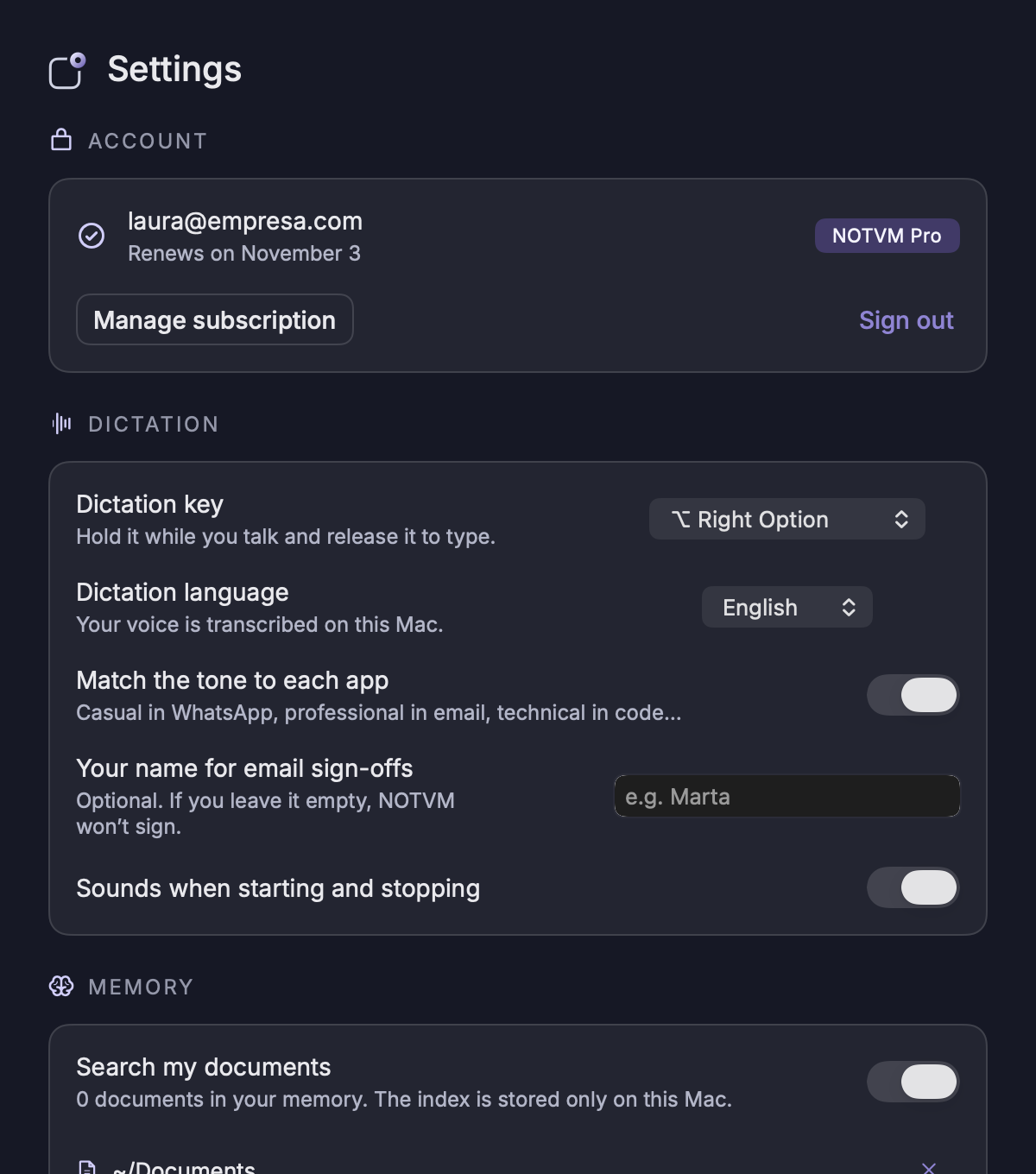
| Section | What you can change |
|---|---|
| Account | Your email, your plan, trial days left, choosing a plan, managing your subscription and signing out. |
| Dictation | Dictation key, language (Spanish, English, French, Italian), adapting the tone to each app, name to sign with, and sounds. |
| Memory | Searching your documents, included folders, updating or deleting the index, remembering your activity and your style. |
| Meetings | Detecting meetings and opening the transcripts folder. |
| Automations | Detecting repeated tasks, plus the mode or deletion of each automation. |
| Connections | Connecting or disconnecting Slack, and adding another workspace. |
| Intelligence | Automatic (the best writing, in the NOTVM cloud) or On this Mac only (maximum privacy, simpler writing). |
| Permissions | The status of each permission and a button to turn it on. |
| General & Privacy | App language (Español | English), open at login, pause NOTVM, automatic updates and delete history. |
App language: switching between Español and English in General & Privacy changes the whole app and also switches the dictation language.
Account and plans
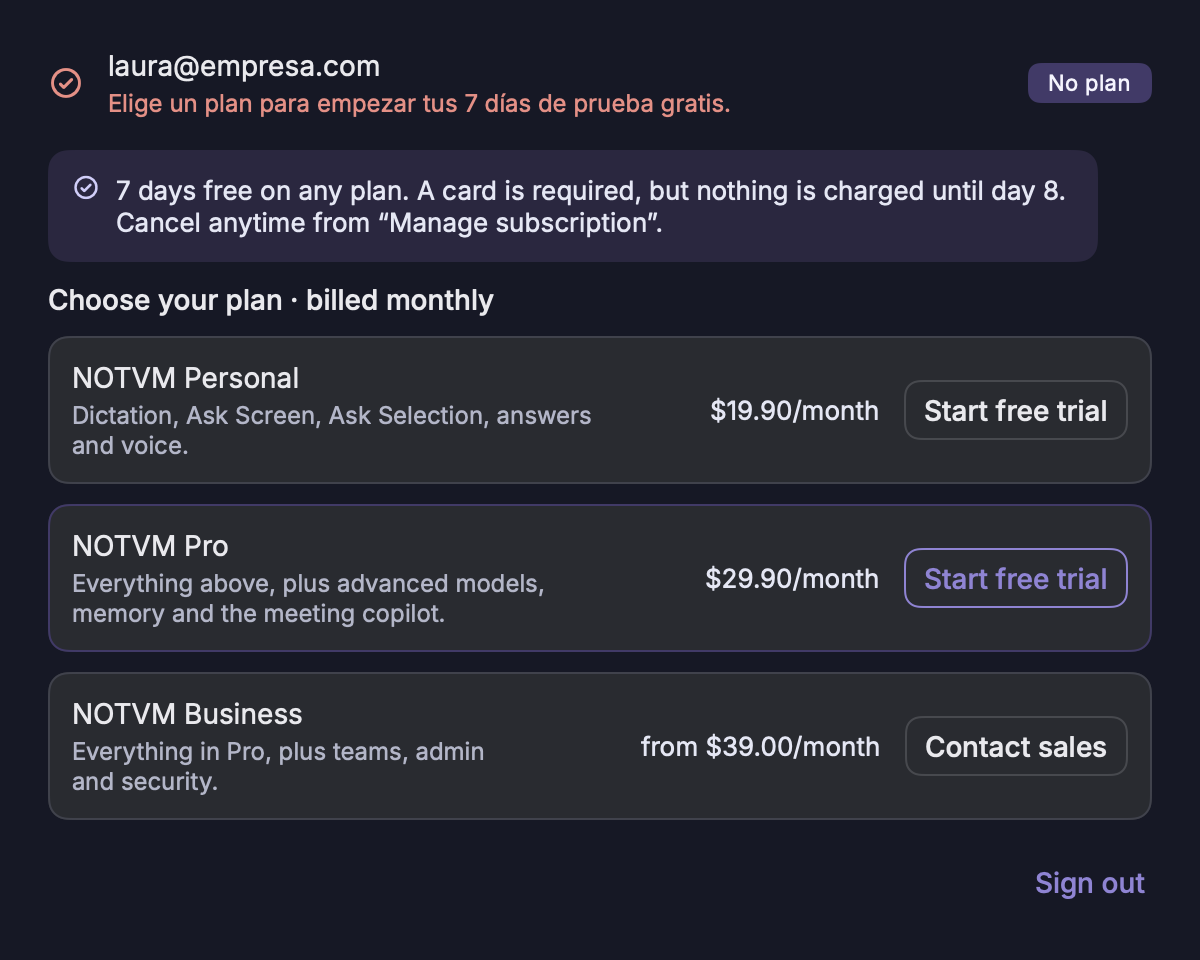
Personal · $19.90/month
Dictation, questions about your screen and selection, rewriting, summaries, translation, replies and voice.
Pro · $29.90/month
Everything above, plus full documents, memory, meeting copilot, actions, automations and advanced models.
Business · from $39/user/month
Everything in Pro, plus teams, administration and security.
- Every plan comes with a 7-day free trial. A card is required to start, but nothing is charged during the trial. If you don’t cancel, the first charge is on day 8. The trial is once per account.
- During the trial, Your account shows how many days are left and the date of the first charge.
- With annual billing you get 2 months free.
- Change plans or cancel anytime in Your account › Manage subscription. You keep access until the end of the paid period.
- NOTVM updates itself. You can also check for updates by right-clicking the icon.
Privacy
| Stays on your Mac | Goes to the NOTVM cloud (only when needed) |
|---|---|
| Your voice (transcribed on the Mac) Your history The index of your documents Your activity What NOTVM observes to learn Meeting transcripts | The text you dictate, to write it up A capture of the window, only when you ask about the screen or say “reply that…” The document snippets needed to answer The meeting text, for tips and the summary |
- What you send is not used to train AI models.
- You can pause NOTVM at any time and delete your history, memory and activity in Settings.
- If you choose “On this Mac only” in Settings › Intelligence, writing happens offline.
More details in the Privacy Policy.
Troubleshooting
The shortcut doesn’t do anything
- Check that NOTVM has the Accessibility permission (System Settings › Privacy & Security › Accessibility).
- Make sure NOTVM isn’t paused (the icon appears gray with ⏸).
- If another app uses ⌥ Space, change the dictation key in Settings or use right ⌥.
“I didn’t hear you”
- Keep the shortcut held while you speak, or press it once for hands-free mode.
- Check the Microphone permission and that the dictation language is yours.
The text doesn’t appear in the field
Some apps don’t report that they have an active field. NOTVM still writes it and puts the text on the clipboard: paste it with ⌘ V. It’s also in your history.
It can’t see the screen or can’t hear others in the meeting
Turn on Screen Recording for NOTVM, then right-click the icon › Restart NOTVM.
I’m not getting the sign-in code
Check your spam folder. You can request another code after a moment (up to 5 per hour).
Memory can’t find a document
Check that it’s in an included folder (Settings › Memory) and click Update now. Very recent documents may take a few minutes to be indexed.
Something isn’t working as expected
Email us at info@notvm.es telling us what you said and what NOTVM did. We reply within 2 business days.
Phrases to get started
All with ⌥ Space:
Writing
“Tell Laura we’ll see her on Thursday”
“Reply yes, but in three weeks”
With selected text
“Translate it into Spanish”
“Make it shorter”
“Explain it to me”
About the screen
“What are they asking me for here?”
“Is there any risk in this contract?”
Memory
“Find Josep’s quote”
“Where did we leave off?”
“Summarize my day”
Meetings
“Start the copilot”
“Prepare me for the meeting with Laura”
Actions
“Schedule a meeting with Marta tomorrow at 10”
“Send this document to Josep”
Automate
“Learn how I file invoices”
“Done”
Slack
“What did Ana say in Slack?”
“Post in #sales that we closed the deal”