
Voice dictation on Mac and Windows: the complete guide to writing by speaking
Speaking is the fastest way to produce text: we say about 150 words per minute and type about 40. Mac and Windows come with built-in voice dictation, and this guide shows you how to turn it on, its shortcuts, its limits and how to make the jump to AI dictation.
How to turn on voice dictation on a Mac
- Open System Settings › Keyboard.
- Under Dictation, turn it on and choose your language.
- In any text field, press the dictation shortcut: by default the microphone 🎙 key or the Control key twice (you can change it in that same setting). Then speak.
You have to say punctuation out loud: “comma”, “period”, “new paragraph”, “question mark”.
How to turn on voice dictation on Windows
- Put the cursor in a text field: Word, Outlook, your browser…
- Press Windows + H. The voice typing bar opens.
- Speak. On Windows 11 you can turn on automatic punctuation from the bar's settings gear.
The limits of built-in dictation
Built-in dictation is fine for short sentences, but it falls short for real work:
- It transcribes literally: every “um”, repetition and half-finished sentence.
- It doesn't understand corrections: say “Tuesday, no, sorry, Wednesday” and it types both.
- It doesn't adapt the tone: it writes the same way to a client as in a WhatsApp chat.
- It doesn't add structure: no greetings, paragraphs or lists unless you dictate each one.
You end up fixing so much that it isn't worth it, and most people give up.
AI dictation: talk the way you talk, get it written well
AI dictation doesn't copy what you say: it understands what you mean and writes it properly. Here's how it works in NOTVM, on Mac and Windows:
- Put the cursor in any app: Gmail, Outlook, Slack, WhatsApp, Word, Notion…
- Hold ⌥ Space on Mac or Alt Space on Windows and speak naturally.
- Let go. A few seconds later the text appears, clean and in the right tone for that app.

What makes AI dictation different
- It removes filler and organizes your ideas.
- It applies your corrections: “let's meet Tuesday, no, Wednesday” becomes “let's meet Wednesday”.
- It understands instructions: “tell Laura we'll see her on Thursday” writes the message to Laura.
- It adapts the tone: professional in email, friendly in Slack, short in WhatsApp.
- It learns your style: your sign-off and the way you write, better every week.
Tips to dictate better
- Think of the idea before you speak, not the exact sentence: the AI handles the wording.
- Start with short messages (chats, quick replies). Within a week it will feel natural.
- Dictate rough and tidy up later: select the text and ask “make it a list” or “make it more formal”.
- Use a headset with a microphone if you work somewhere noisy.
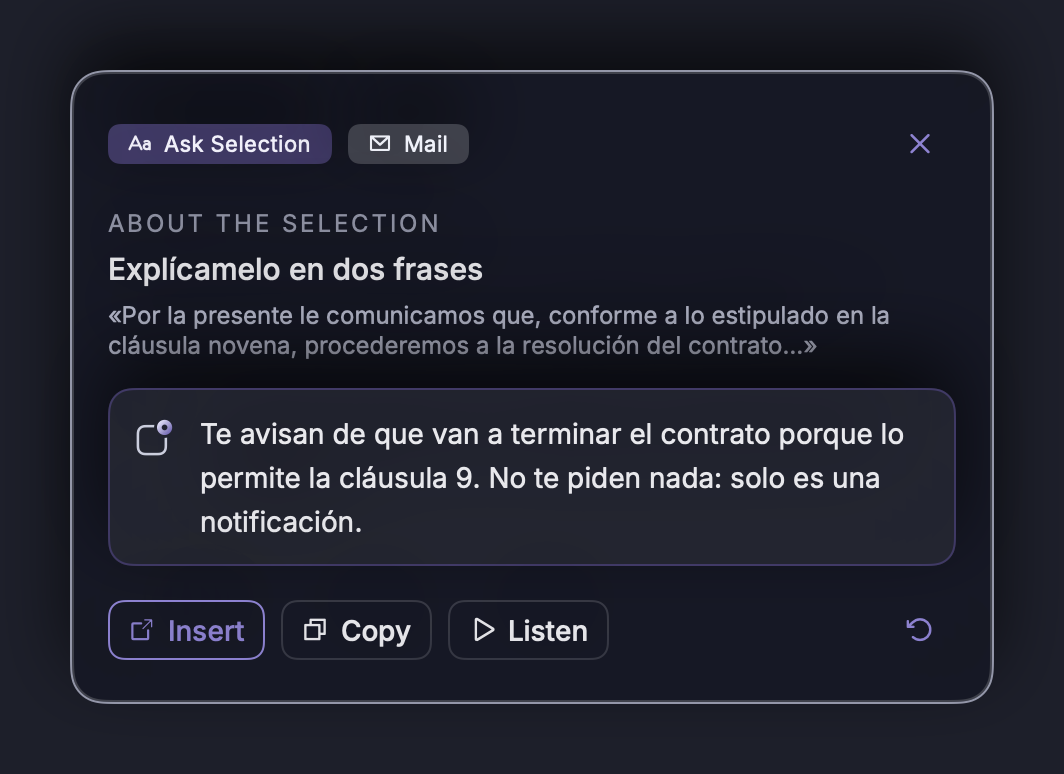
How much time dictation saves you
If you spend an hour and a half a day writing emails, messages and documents, dictating most of it can give you back close to an hour a day. We break down the numbers in how to win back an hour a day by not typing, and you can work out your own case with the benefits calculator.
Frequently asked questions
How do I turn on voice dictation on a Mac?
Go to System Settings › Keyboard › Dictation and turn it on. Then, in any text field, press the dictation shortcut (by default the microphone 🎙 key or the Control key twice) and start talking.
What is the dictation shortcut on Windows?
On Windows 10 and 11, press the Windows key + H with the cursor in a text field. The voice typing bar opens and you can start speaking.
Does voice dictation work in other languages?
Yes. Mac and Windows dictation support many languages, including English and Spanish. In NOTVM you pick the language on the first screen or in Settings, and the text adapts to the tone of each app.
What's the difference between regular dictation and AI dictation?
Regular dictation transcribes word for word, with filler and no structure. AI dictation understands what you mean: it removes filler, applies your corrections (“no, sorry, Wednesday”) and writes with the right tone for an email, a chat or a document.
Try it free for 7 days
NOTVM works on Mac and Windows, in any app. Install it in two minutes and use a single shortcut: ⌥ Space on Mac or Alt Space on Windows.
Download NOTVM